Best practices and tools for managing code sets
Last updated: 2026-01-06
 Code set basics
A code set is the collection of point, link and shape codes contained in one or multiple corridors.
- Point codes are the input corridor feature lines which create the definition for WisDOT production corridor surfaces
- Point and link codes can be used to create setup surfaces for downstream corridors
- Point and link codes are used in cross-section labels
-
Shape codes can be used to calculate certain corridor quantities
The code set of a corridor is defined in the subassembly parameters found in the assemblies used in the corridor.
Unique codes in corridors result in better end products and more options in design output
Unique point codes example
Imagine an intersection of a two-lane roadway with a two-lane roadway that has a curb returns between the two mainlines. Also imagine all the edges of pavement are coded as ETW.
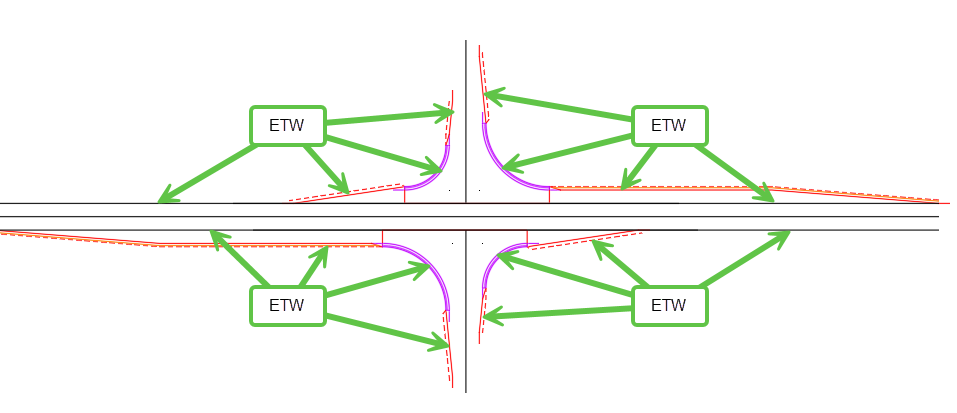
While this may be initially easy if a subassembly has ETW as the default for an edge of lane, the following results are likely:
- No individual control of the cross-section labels by marker labels
- Potentially incorrect feature line definitions because of corridor branching
Poor construction data packet deliverable to construction (no differentiation between feature lines)
Now imagine the same intersection with unique point codes used in the subassemblies
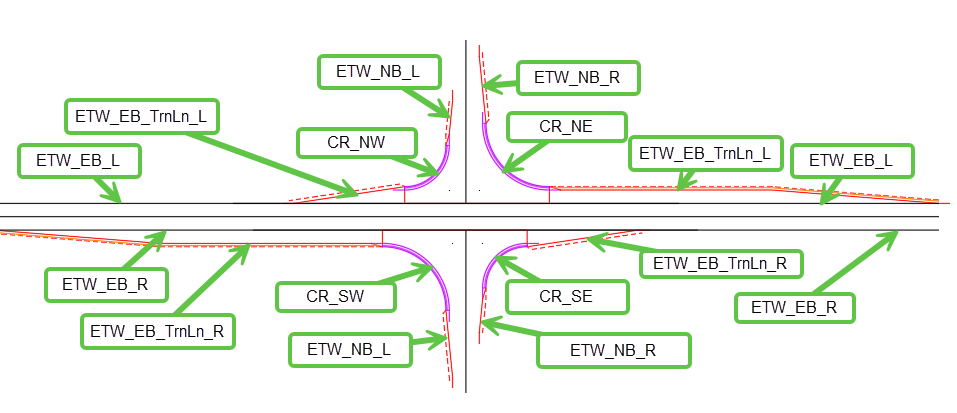
This level of point code/feature line creation results in:
More descriptive product for construction
More options for using cross section label styles
Fewer surface creation problems.
WisDOT code set styles in Civil 3D 2026+
Default WisDOT code set styles in Civil 3D 2026+ do not contain all the possible combinations documented in WisDOT subassembly automated point code suffixes explained. The resulting code set styles would have been enormous to use and maintain.
The WisDOT code set styles contain the provided point codes without any suffixes, with _R and with _L.
Requirement: Unless a project is confined to two-lane work only (no intersection, roundabout, or more than two lanes), users will need to actively manage their project code sets between corridor, surface, and cross-section files to provide and unique point codes.
WisDOT solutions to unique corridor code set issues
Issue: It is time-consuming to create and manage unique code sets
-
It takes a lot of time for an end-user to edit subassembly codes that do not already exist.
-
It is possible to create pre-loaded assemblies and distribute them to a community of users through tool palettes. When doing this, development and management of all the possible assemblies that a user may need would be a significantly time-consuming task. If needed assemblies didn't exist, a user would be editing subassembly codes on their own.
Solution: Automated point code subassemblies
In Civil 3D 2026 and beyond, WisDOT subassemblies added automated point code suffixes. Automated point code suffixes adds a set of standard parameters to make setting unique codes easier and faster. More information can be found at WisDOT subassembly automated point code suffixes explained
Issue: Code sets do not automatically update to related objects
-
Corridor surfaces: WisDOT design surface deliverables are created from point codes connected together to create feature lines. Setup surfaces can be created from point and/or link codes.
-
Code set styles: These control how corridors are displayed in 3D and 2D deliverables. Cross section display and labels, display in corridor section editor, rendered surfaces from links are all controlled by code set styles.
Whenever a code is added to an assembly, that code needs to be manually added to all of the objects of the above types that need it.
Solution: Tools to synchronize code sets to other objects and files
| Scenario | Tool |
|---|---|
| Create/update corridor surfaces with unique codes | Corridor - Create Corridor Surfaces |
| Add unique codes from assemblies/corridors to code set styles in the same DWG | Corridor - Add Codes to Code Sets |
| Manage values and styles in code set styles | Corridor - Edit Code Set Style in Excel |
| Import/export code set styles from a DWG | Corridor - Import Code Set Styles |
| Share project-based code set styles across multiple DWG files (corridors, cross-sections, etc) | Aggregate all project code set styles in CodeSets.dwg Reference CodeSets.dwg in all corridor, cross-section files with Manage tab > Styles panel > Reference |
Best practices for managing unique code sets
Unique point code concepts
-
Review WisDOT surface-based point codes explained prior to using WisDOT subassemblies and creating unique point codes.
-
Tip: Roadway names do not need to be embedded in point codes.
Prior to creating corridors
-
Learn and use WisDOT subassemblies and how WisDOT subassembly automated point code suffixes explained works.
-
Plan out your corridor(s) before creating them.
-
Lay out regions in plan view.
-
Determine the assemblies needed, subassemblies to be used and targets needed.
-
Determine codes to assign (particularly point codes that create corridor feature lines)
-
At initial corridor creation
-
Create corridor file(s) from your project-specific plan
-
Create assemblies with project-specific point codes
-
Add project-specific point codes to all provided code sets with Corridor - Add Codes to Code Sets
-
You may need to do style add/edits to the code set styles after adding custom point codes. This can be done in the DWG or in Excel with Corridor - Edit Code Set Style in Excel. If done in Excel, the same tool enables importing the code set styles back into a DWG.
-
-
Create a file ProjectID\dsgn\CodeSets.dwg. This will be the source for all project specific code set styles to be shared across all files that use them in the project.
-
Import project-specific code sets into CodeSets.dwg.
-
-
Reference CodeSets.dwg into any DWGs that need code sets (corridor, surface, cross-section files) with Manage tab > Styles panel > Reference
When project-specific point codes need to be added or edited
-
Get code set style changes into CodeSets.dwg. This can be accomplished by:
-
Making changed directly in CodeSets.dwg.
-
Exporting a code set style from CodeSets.dwg into Excel with Corridor - Edit Code Set Style in Excel and import the code set back in with edits made.
-
If edits are significant enough, repeating the process used at initial corridor creation.
-
-
In affected corridor files
-
Make point code add/edits to assemblies
-
Add new/changed point codes to design surfaces with Corridor Properties > Surfaces > Add Data > Feature Lines.
-
-
Open/sync/save all files downstream from corridor file(s) in order of data flow (corridors > refinement surfaces > cross-sections).
With style references to CodeSets.dwg, changes will cascade to all project files.