WisDOT subassembly automated point code suffixes explained
Last updated: 2026-01-06
Starting with Civil 3D 2026, WisDOT added automated code suffix creation to many of its custom subassemblies.
What are automated point code suffixes?
-
Automated code suffixes describes a group of parameters that defaults, standardizes, and simplifies the creation of unique point codes
Why automated point code suffixes?
WisDOT set the following goals to improve construction data packet content:
-
Increase the creation of unique point codes for the following business needs
-
Higher quality deliverable for construction needs
-
Improved self-documentation of feature line product
-
Improved design surface creation by reducing feature line branching
-
-
Creating more unique point codes/feature lines has been achieved by:
-
Implementing a surface-based point code classification system
-
Automating unique point codes through subassembly parameters
-
Developing tools to manage dynamic codes in the code set styles
-
How do automated point code suffixes work?
Parameters
-
Right/left point suffix
-
These two parameters can be set to a standard list of options to apply to all point codes on a subassembly. The options are as follows:
-
UserDefined (uses the value in the user defined parameter below)
-
_R/_L
-
_NB_R/_NB_L
-
_SB_R/_SB_L
-
_EB_R/_EB_L
-
_WB_R/_WB_L
-
_NW_R/_NW_L
-
_NE_R/_NE_L
-
_SW_R/_SW_L
-
_SE_R/_SE_L
-
_MED_R/_MED_L
-
NoSuffix
-
PointCodeNumber (overwrites code with only the point code number)
-
-
-
Right/left user defined point code suffix
-
Custom values can be added by the user that the standard suffixes do not address
-
The above parameters define the standard point code suffix for a subassembly. The below special characters determine when and how the suffix is applied.
Special characters
The following special characters can be added to most point code field of WisDOT subassembly version 2026 and beyond.
-
Equal sign(=): The equal sign will prevent the suffix being added to the point codes.
-
Hard brackets [ ]: The equals sign will ignore anything outside the hard brackets.
-
Equal sign and hard bracket can be used in combination to achieve both of their results.
-
If no special characters exist, then the default action is to apply the active side suffix to all codes.
Examples
Here are some possible examples with automated point code suffixes using ShldGeneric - Version: 26.2 assuming a right-side insertion. Look at parameter [P14] Datum which is the point code for the subgrade shoulder point (SGSP).
| Scenario | Value in "[P14] Datum" | Value in "Right point suffix" | Resulting codes | Assembly in modelspace |
|---|---|---|---|---|
| No special characters (default) | Datum_SGSP,Top_SGSP | _R | Datum_SGSP_R,Top_SGSP_R |
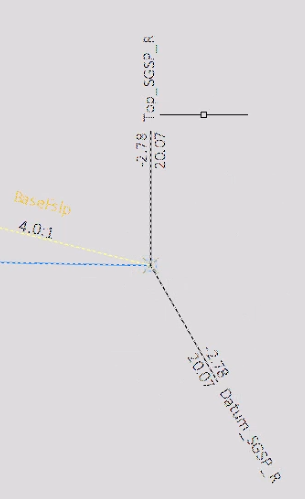
|
| No special characters, change suffix to northbound | Datum_SGSP,Top_SGSP | _NB_R | Datum_SGSP_NB_R,Top_SGSP_NB_R |
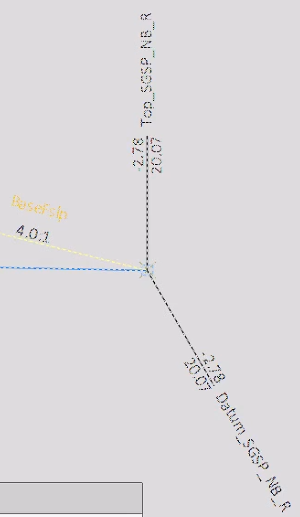
|
| Plus sign between codes (default action on right code, ignore left code) | Datum_SGSP,+Top_SGSP | _R | Top_SGSP_R |
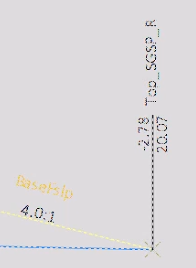
|
| Plus or equals sign after codes (ignore all codes, leave them in if it would need to change later) | Datum_SGSP,Top_SGSP+ | _R | (uncoded) | |
| Equals sign between codes (keep right code with no suffix, ignore left code) | Datum_SGSP,=Top_SGSP | _R | Top_SGSP |
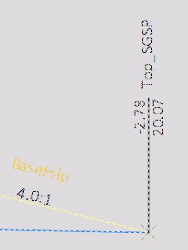
|
| Equals sign before both codes (keep all codes, do not use suffix) | =Datum_SGSP,Top_SGSP | _R | Datum_SGSP,Top_SGSP |
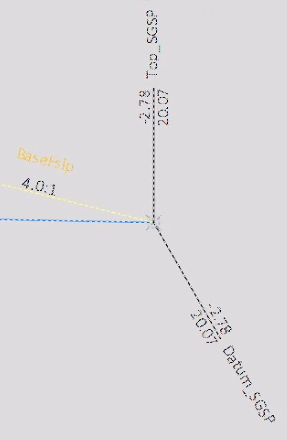
|
| PointCodeNumber in point suffix (show point code only) | Datum_SGSP,Top_SGSP | PointCodeNumber | P14 |