Plotting plan sheets with color utilities - 1078 submittal (mix color and grayshade plotting)
Last updated: 2026-02-25
Requirements for DT1078 submittals can be found in WisDOT Guide to Utility Coordination (WGUC) Chapter 10.
Notes on plotting color utilities for 1078 submittal
- Color plotting some, but not all layers in the WisDOT environment is achieved by
- Using wisdot_standard.ctb to plot the layers that need to be black/greyshade.
- Changing the modelspace layer colors to be plotted in color from Index color (ex. 52) to True color (ex. 165,165,0)
- Modelspace colors will look identical
- There are no True color definitions in any WisDOT color tables, so True colors are plotted as-is
Basics of the workflow
- Save the current layer state (assuming you will need to return to it)
- Change the utility layers to be True color from Index color
- Plot
-
Change the layer state back to the original for standard plan plotting
General notes on mixing greyshade and color plotting in the WisDOT environment
Managing layer colors in AutoCAD combines the following items:
- Layer Properties
- Layer Groups
-
Layer States
WisDOT Layers - Layer Color Manager combines all of these items into one location and adds the following functionality:
- Right-click switching between index color and true color
-
Layers - Apply Layer State tool (also available from Layers - Layer Color Manager) is recommended because it will act on xref layers not defined in the layer state.
Standard WisDOT utility layers workflow
The following workflow will work for all sheets (plan and cross-section) where standard WisDOT utility layers are being used.
- Open a sheet file (plan, plan/profile, cross-section) you want to plot utilities in color on.
- WisDOT * tab > Manage panel > Layers Tools dropdown > Layer Colors Manager
- Manage > Layer States Manager
- New... to save the current layer state to be able to get back to (Plan default or whatever).
- Manage > Layer States Manager
- WisDOT * tab > Manage panel > Layers Tools dropdown > Layer States palette > Existing Utilities - Color - adds the Existing Utilities - Color layer state to the file and applies it.
- Plot from wherever (Plot, Publish, DWG TrueView, Publish Collections Manager)
To revert back to normal plotting,
- WisDOT * tab > Manage panel > Layers Tools dropdown > Layer Colors Manager
- Manage > Apply Layer State
-
Save the file.
Plotting any layers in color mixed with standard greyshade plotting workflow
There are a few other layer states available on WisDOT * tab > Manage panel > Layers Tools dropdown > Layer States palette that can also use the workflow above.
If the above workflow does not work, or if you need ad-hoc mixing of greyshade and color plotting by layer, the following workflow can be used.
- Open a sheet file (plan, plan/profile, cross-section) you want to plot utilities in color on.
- WisDOT * tab > Manage panel > Layers Tools dropdown > Layer Colors Manager
- Manage > Layer States Manager
- New... to save the current layer state to be able to get back to (Plan default or whatever).
- Under Layer Filters, select the layer group you want to work with.
- Select the layers you want to switch to true color
-
Right-click on a color > To True Color (RGB)
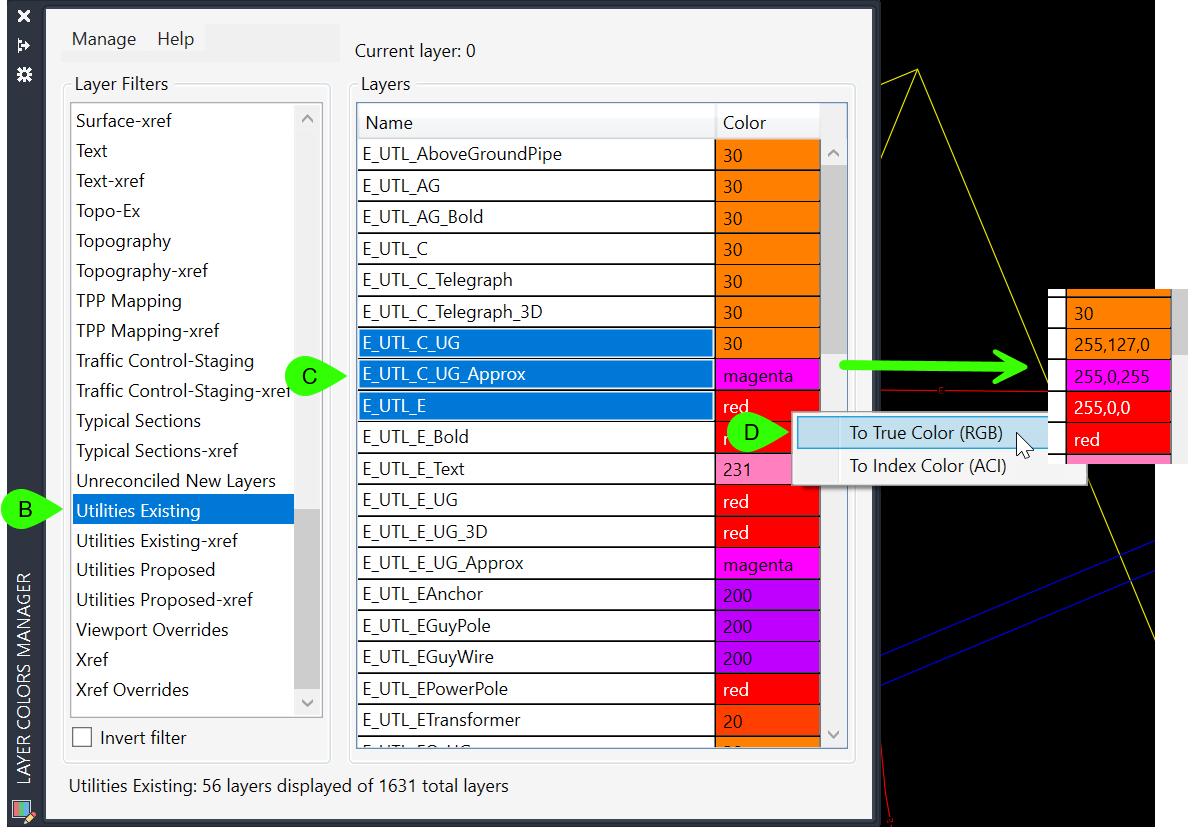
- Manage > Save Layer State
-
Plot from wherever (Plot, Publish, DWG TrueView, Publish Collections Manager)
To revert back to normal plotting,
- WisDOT * tab > Manage panel > Layers Tools dropdown > Layer Colors Manager
- Manage > Apply Layer State (Plan default or whatever)
- Manage > Layer States Manager
Concept Information