Profile - Create Surface Profiles
Last updated: 2026-01-06
Overview
The Create Surface Profiles tool is a batch surface profile creation too. While Civil 3D does contain a native surface profile creation tool, only one alignment can be selected at a time. The Create Surface Profiles tool allows surface profiles to be created for multiple alignments at one time.
Interface
WisDOT Design tab > Design panel > Profile dropdown > Create Surface Profiles
The tool can also be accessed from the command line: DOTCREATESURFACEPROFILES.
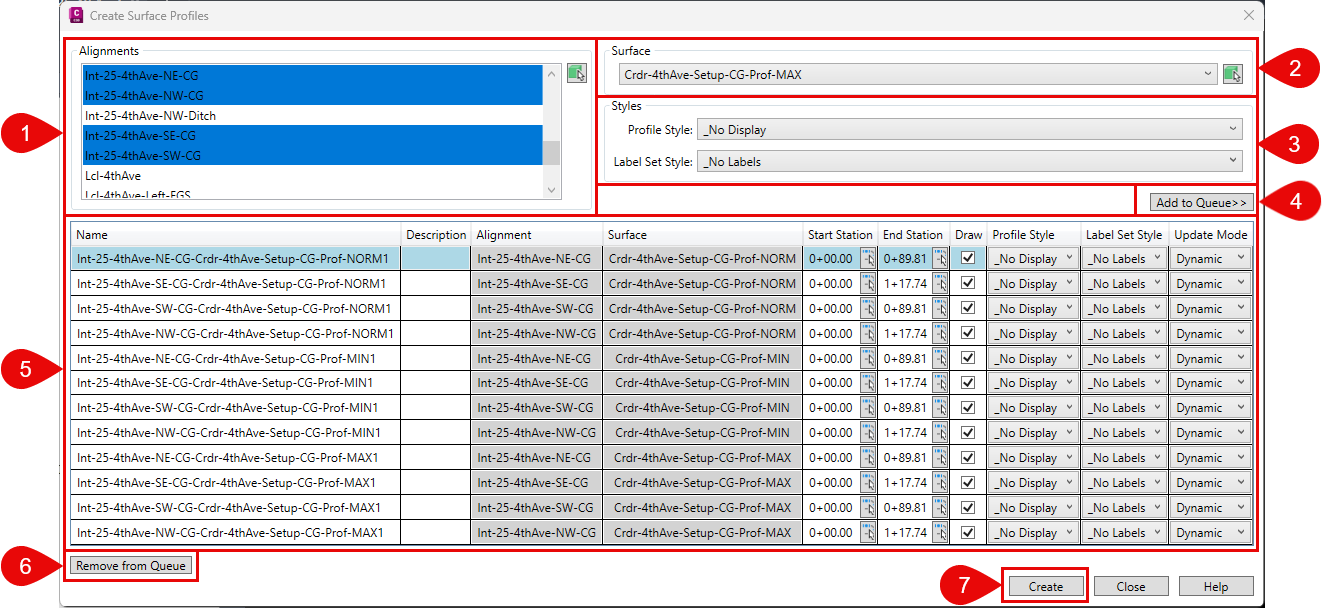
- Select the alignments to make surface profiles for:
- Use any select method to select the alignments from the list. (Shift-Select, Control-Select)
- Use the alignment pick box to select any number alignments from model space. The alignment pick box will overwrite any alignments selected in the list.
- Select the Surface to create the profiles from. Only one surface may be selected.
- Select the styles to assign to the surface profiles
- Select a profile style for the surface profiles
- Select a label set for the profiles (only alignments with existing profile views will adapt this label set).
-
Add To Queue >> to add the surface profile(s) to the list of profiles to be made
Info: This does not create the surface profiles
- Once added to the creation queue, additional edits may be made to:
- Name
- Description
- Start Station
- End Station
- Profile Style
- Label Set Style
- Update Mode
- Remove from Queue to remove surface profiles from the creation queue.
- Create to create the surface profiles