Download elevation data for surface creation
Last updated: 2026-02-19
There are different options for downloading elevation data. It is important to know the following information before downloading data.
 InfraWorks recommended over Civil 3D for most options processing elevation data into surfaces
InfraWorks is available with an AEC Collections license.
WisDOT only: WisDOT staff with a Civil 3D license can request an InfraWorks install from the WisDOT IT Service Portal.
The one data option below that Civil 3D will process well is a small number of Lidar-Derived Tiled DEM from GeoData@Wisconsin. The other options may include a coordinate translation and/or are slow due to large file size.
Methods recommends processing the other datasets through InfraWorks for the following reasons:
- File formats
- If you are downloading files from GeoData@Wisconsin, there are options for IMG format and GeoTIF format
- IMG files can be downloaded directly
- GeoTIF files are a 2 file combination and require downloading and extracting zip files
- If you are downloading files from GeoData@Wisconsin, there are options for IMG format and GeoTIF format
- Processing efficiency
- InfraWorks is more efficient (faster) at processing large surfaces. The larger the surface is, the more noticeable the difference in processing time
- Coordinate system translation
- For datasets not in the coordinate system you are working in, it is far easier to translate coordinates in InfraWorks than Civil 3D
- Once converted, coordinate systems and translations do not need to be used in Civil 3D.
What you need to know before using ANY dataset
- When was it collected?
- Projection used?
- Critical because most data will not be in county projections and will need to be translated.
- How accurate?
- File format?
Options for surface data
There are two websites and a few options for downloading surface data files. They vary in their amount of processing, resolution, physical footprint, and file size.
Warning: None of these datasets should be used for match-in elevations for design or construction. Their absolute elevations are not accurate enough. Their relative elevations (slopes) are accurate enough for drainage calculations.
Even if you intend to download data from GeoData@Wisconsin, The National Map download site can be useful to determine drainage areas as the interactive map displays contours when zoomed in and the GeoData site does not.
Multiple files can be merged together in InfraWorks and Civil 3D to form larger areas or to span tile edges.
| Footprint Size | Website | Dataset | Projection | Unit | Tile Footprint | File size | Comment |
|---|---|---|---|---|---|---|---|
| Small | GeoData@Wisconsin | Lidar-Derived Tiled DEM | WisCRS | US Foot | 2250 ft x 2250 ft (0.4mi x 0.4 mi) | ~10MB | Most recommended for small areas. |
| Medium | TNM Download v2 | 1-meter DEM | LL83 | Meter | 10000m x 10000m (6.2mi x 6.2mi) | ~300MB | |
| Large | GeoData@Wisconsin | Lidar-Derived Bare Earth DEM for XX County | WisCRS | US Foot | Entire county (~36mi x 36mi) | 2-6GB | Not recommended due to large file size for footprint. Multiple tiled DEMs are preferred. If used, make sure elevation units are identical to horizontal units. County-based datasets on GeoData@Wisconsin are unique to the county. Tiled DEMs appear to always be available. County-wide DEMs are not always available and vary in resolution. |
| Huge | TNM Download v2 | 1/3 arc-second DEM | LL83 | Meter | 80000m x 110000m (~50mi x 68mi) | ~450MB | Far less dense than county-wide tiles on GeoData. |
Using GeoData@Wisconsin
- Search for the appropriate product with county name. Examples:
- Dane County Lidar-Derived Tiled DEM
- Lidar-Derived Bare Earth DEM for Waukesha County
- Eau Claire DEM (will give all available elevation products)
- If intending to import directly into Civil 3D
- Filter by Format: GeoTIF
- Click on the hyperlink for the desired product
- If the Tiled product is selected, a map of the tiles will appear
- Click on the desired tile
- Click on the Download button below the map
- Repeat for all needed tiles
Using TNM Download v2 (nationalmap.gov)
- Search for location using the "Find address or place" search bar in upper right of map
- Zoom and pan map to desired limits
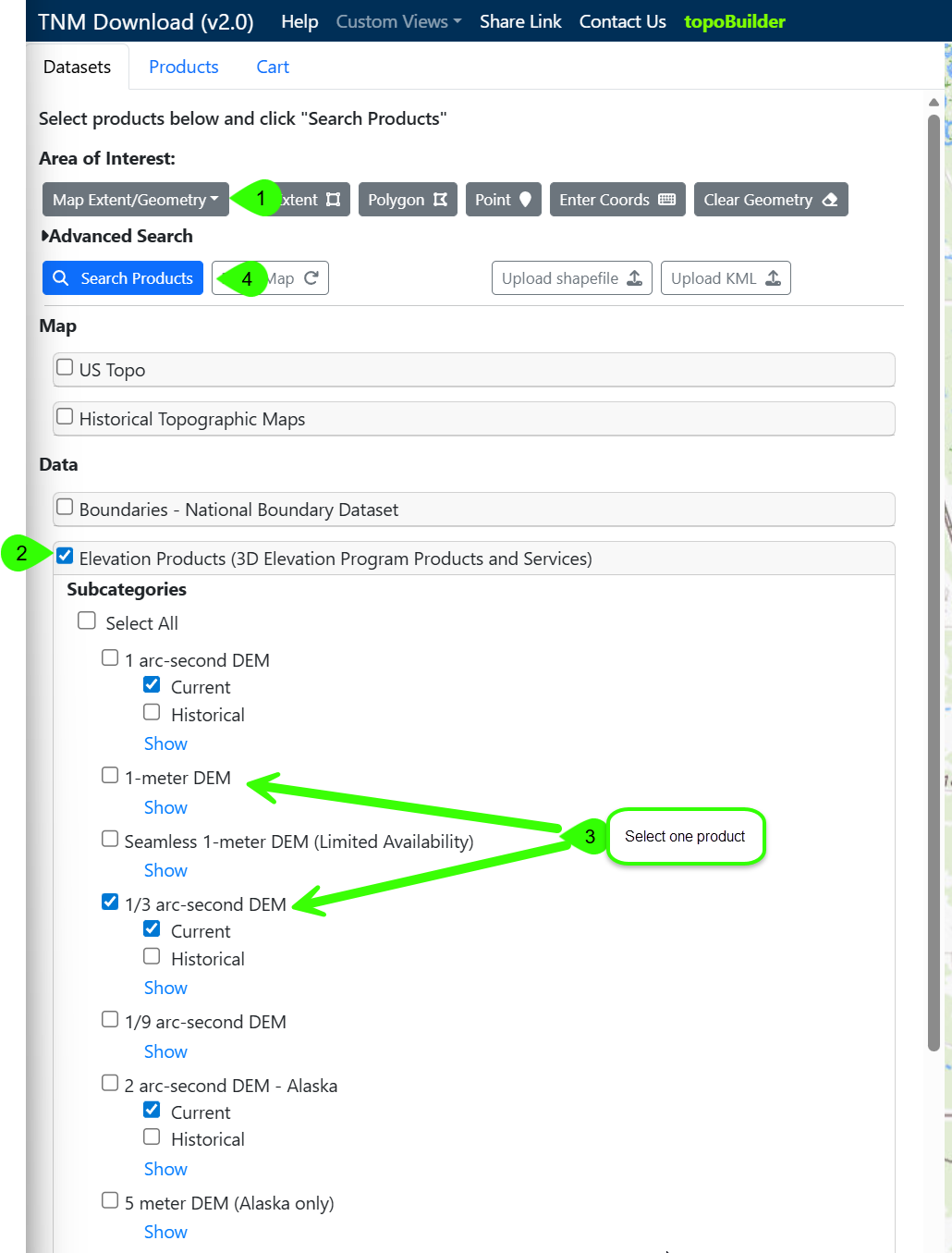
- Datasets tab
- Set Area of Interest by Map Extent or Selectable Polygon
- Data - Click Elevation Products (3D Elevation Program Products and Services)
- Click desired product (recommended to select only one product to minimize search results)
Click Search Products
- Products tab
- Hovering over items will show their footprint in the map
Click the Download Link for desired products
Storage in Civil 3D project
A good location for these files in a Civil 3D project is ProjectID\base\othr. All files should be stored in the same folder.