Fatal error on open, reset Civil 3D
Last updated: 2026-01-06
Issue
Civil 3D may crash with a "Fatal Error" message. When re-opening Civil 3D, the "Fatal Error" message returns, even with computer restarts and re-opening of Civil 3D.
Solution
 WisDOT staff
- Click the “Update WisDOT C3D” icon in the taskbar tray to open the menu.
Help - Reset Civil 3D (Requires connection to DOT network, either in office or by VPN)
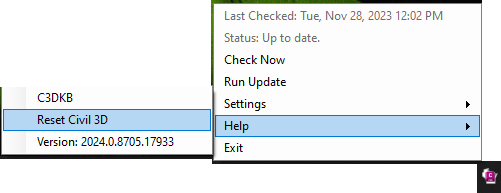
- Civil 3D will reset and the WisDOT configuration will be reinstalled.
-
From the desktop, Civil 3D WisDOT

External users
- Close Civil 3D, if open.
-
Start > Autodesk AutoCAD Civil 3D 20XX > Reset Settings to Default
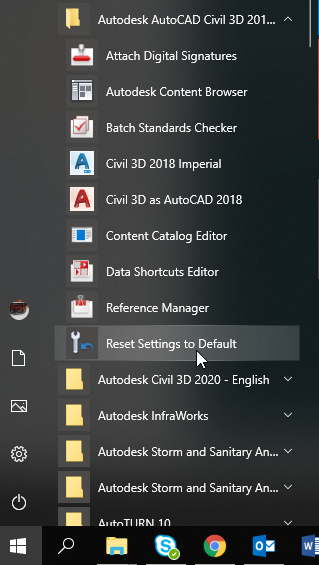
-
Reset Settings - Backup dialog box > Reset custom settings
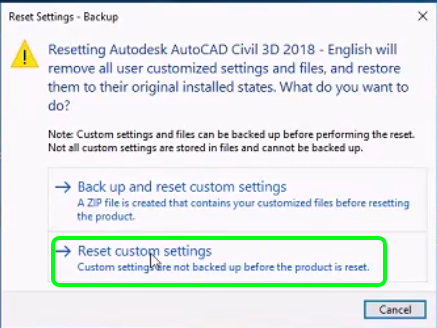
-
OK after settings have been reset.
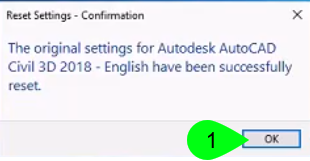
-
Autodesk AutoCAD Civil 3D will begin an initialization process. Once it completes, AutoCAD will open. Do not interrupt this process.
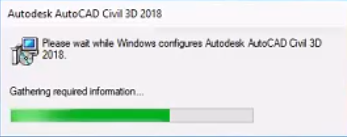
- Once AutoCAD opens completely, close the application.
- From the desktop, Update WisDOT C3D
- Select the version to be updated
Install
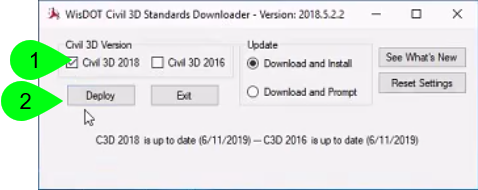
- Let the Civil 3D update process complete.
-
From the desktop, Civil 3D WisDOT
- Once the application opens, WisDOT Tab > Manage panel > Workspace dropdown > Restore User Settings
- Civil 3D will close.
- Re-open Civil 3D WisDOT. The application is ready to use.