Corridor - Add Codes to Code Sets
Last updated: 2026-01-06
Overview
The command reads all the point, link and shape codes in a selected corridor or assembly and compares them to the selected code set style contents. The following steps occur if a code is not found in the selected code set style:
-
It will look at all the possible code matches in the selected code set style and pick the code that matches the most characters of the missing code. The new custom code must start with a code set code in order for that code set code to be considered a match. The styles associated with the closest matching code are added to the missing code.
-
If there are no apparent matches, the missing code may be added to the code set style and assigned the default styles.
Usage
WisDOT Design tab > Design panel > Corridor dropdown > Add Codes to Code Sets
The tool can also be accessed from the command line: DOTAddCodesToCodeSets
- Select Corridors and/or Assemblies:
-
Select the Code Set Styles to update from the list.
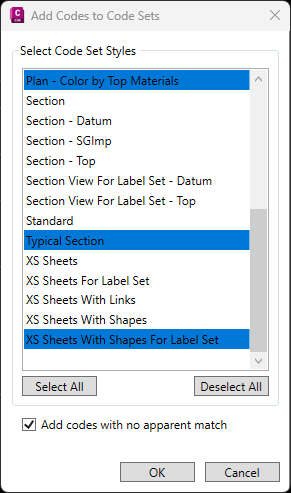
- Add codes with no apparent match in code set style? [Y N]:
- Yes: Point codes without a match are added to the code set style and assigned the default styles.
- No: Point codes without a match are not added to the code set style.
- Add codes with no apparent match in code set style? [Y N]:
-
OK to update the selected Code Set Styles.
Info: The command will only find the codes that are actually being used in the subassembly branch of logic. For example, if a lane subassembly has custom codes for an extended base, but the base never gets extended, those codes are not added.